If you've tried to cast Discord to Google Nest, you've probably noticed: voice delay, echo, out-of-sync audio, random cut-outs.
You hear your friend finish a sentence half a second after they said it. Your own voice bounces back. Group calls become a mess of overlapping audio.
The core problem
Chrome casting was never built for real-time voice communication. It was designed to buffer and stabilise media streams like Netflix and YouTube. Discord needs near-zero latency. Chromecast adds hundreds of milliseconds.
This guide breaks down why it happens, what methods people try, and the approach that actually solves the problem.
Why Discord Audio Lags on Chromecast
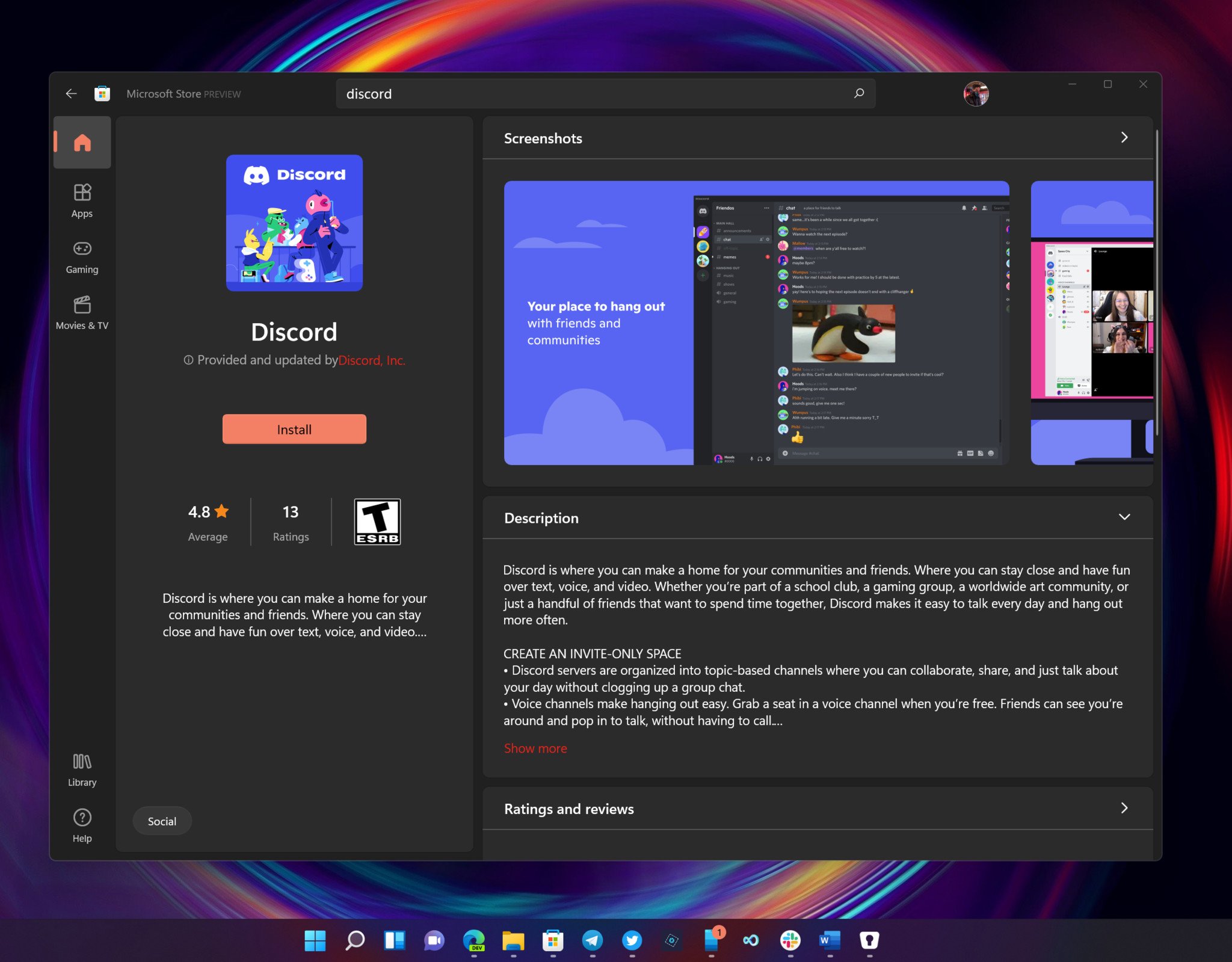

When you cast Discord audio through Chrome, here's what actually happens:
- Discord audio routes through your browser or desktop
- Chrome encodes video + audio together — even if you only want sound
- Chromecast buffers the stream to prevent dropouts
- Delay builds up — typically 300ms to 1000ms
Discord requires near real-time audio delivery. Voice chat breaks down at anything above 100ms of latency. Chromecast regularly adds 3-10x that amount.
Chromecast is designed for streaming media, not live communication.
Method 1: Bluetooth
Some Google Nest devices support Bluetooth pairing. You can pair your PC directly and route Discord audio over Bluetooth.
Pros
- +Slightly less delay than Chrome casting
- +No browser required
- +Works with any app
Cons
- -SBC codec compression degrades voice quality
- -Random dropouts during long calls
- -Range limited to ~30 feet
- -Only one speaker — no multi-room
Verdict
Bluetooth is slightly better than Chrome casting for Discord, but the compression and dropouts make it unreliable for long gaming sessions or group calls. If someone walks between your PC and the speaker, the connection can stutter.
Method 2: Cast Desktop from Chrome
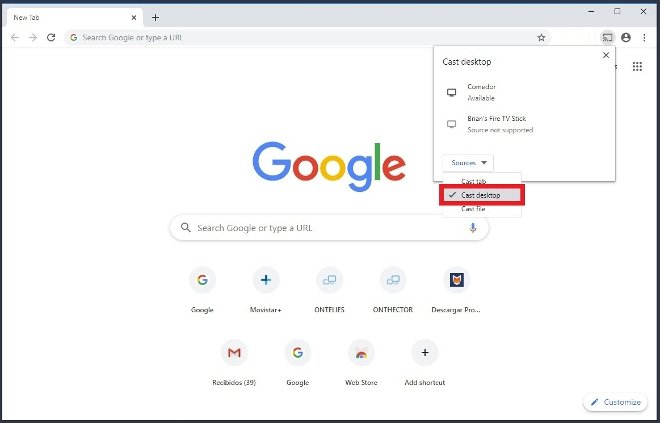
This is the most common workaround people find online. You cast your entire desktop, which includes Discord's audio output.
Steps
- Open Chrome
- Click the three-dot menu (top right)
- Go to Save and share
- Click Cast
- Select your Nest speaker
The Problems
What actually happens
- 300-1000ms delay — voices arrive noticeably late
- Echo problems — your mic picks up the delayed output, creating feedback
- Lip-sync mismatch — if you're screen sharing, video and audio drift apart
- Video encoding overhead — Chrome encodes your full desktop as video even when you only need audio
Desktop casting technically works.
But it makes Discord unusable for real-time conversation.
The Proper Way to Use Google Nest for Discord
The delay problem exists because Chrome casting encodes video + audio and buffers aggressively. The fix is to skip Chrome entirely and stream audio only, directly from Windows.
PC Nest Speaker was built for exactly this.
Instead of routing through Chrome, it captures system audio at the Windows level and streams it directly to your Nest speakers.
- ✓Captures Windows system audio — including Discord natively
- ✓Streams audio-only — no video encoding overhead
- ✓Reduces latency compared to Chrome casting
- ✓Works with Discord desktop app — no browser version needed
- ✓Syncs multiple Nest speakers for multi-room Discord audio
Because it focuses purely on audio — not video — it avoids the overhead that causes Chrome casting delay.
Best Use Cases for Discord on Nest Speakers
Gaming Sessions
Hear your squad's voice chat on room speakers while game audio plays through your headphones. No more being locked to a headset for hours during long gaming sessions.
Watch Parties with Friends
Stream Discord audio while watching movies, live events, or screen shares together. Everyone in the room hears the conversation on quality speakers instead of tinny laptop audio.
Group Voice Calls
Discord voice channels on Nest speakers turns your living room into a proper hangout space. Multiple people can hear and participate without crowding around a laptop.
Long-Duration Chat Sessions
If you're in Discord voice channels for hours — coding with a friend, running a D&D session, or just hanging out — room speakers eliminate headphone fatigue entirely.
Frequently Asked Questions
Can I cast Discord to Google Nest without delay?
Yes, but not through Chrome. Browser casting adds 300ms+ delay because it encodes video + audio and buffers the stream. PC Nest Speaker streams system audio directly to your Nest speakers without the video overhead, significantly reducing latency.
Why does Discord echo on Chromecast?
Because Chrome encodes your desktop as a video stream and Chromecast buffers it before playback. Your microphone picks up the delayed audio from the speaker, creating a feedback loop. Voice chat needs real-time audio delivery, not buffered streaming designed for Netflix.
Does Bluetooth work better for Discord on Nest?
Slightly less delay, but SBC codec compression degrades voice clarity and Bluetooth connections drop out during long calls. Range is also limited to about 30 feet. For short casual use it's okay, but it's not reliable enough for multi-hour gaming sessions or group calls.
Final Thoughts
Discord is built for real-time voice. Chromecast is built for buffered media.
Trying to force one into the other creates the exact problems you're experiencing — delay, echo, and dropouts.
If Discord is part of your daily workflow, browser casting isn't the answer.
Change the method. Keep the speakers.
Ready to use Google Nest for Discord?
Stream Discord voice chat to your Nest speakers with lower latency. No Chrome tabs. No video encoding overhead.
1-hour free trial · No cloud · Windows only
Related Guides
- How to Stream PC Audio to Google Nest Speakers →
Step-by-step streaming setup for Windows
- Multi-Room Audio Setup Guide →
Play Discord audio on multiple speakers simultaneously
- Bluetooth vs Chromecast vs Dedicated Streaming →
Full comparison of all three connection methods
- How to Fix Audio Delay When Streaming to Google Nest →
Practical solutions to minimise latency
- 5 Real-World Use Cases for PC Nest Speaker →
Music, gaming, calls, multi-room, and more