If your Chromecast audio is delayed, you're not imagining it.
You click play.
Sound comes half a second later.
What delay feels like
- Discord voices echo
- Game audio feels disconnected
- Zoom calls become awkward
This happens because Chromecast was never designed to act as a real-time PC speaker. Let's fix it properly.
Why Chromecast Audio Is Delayed

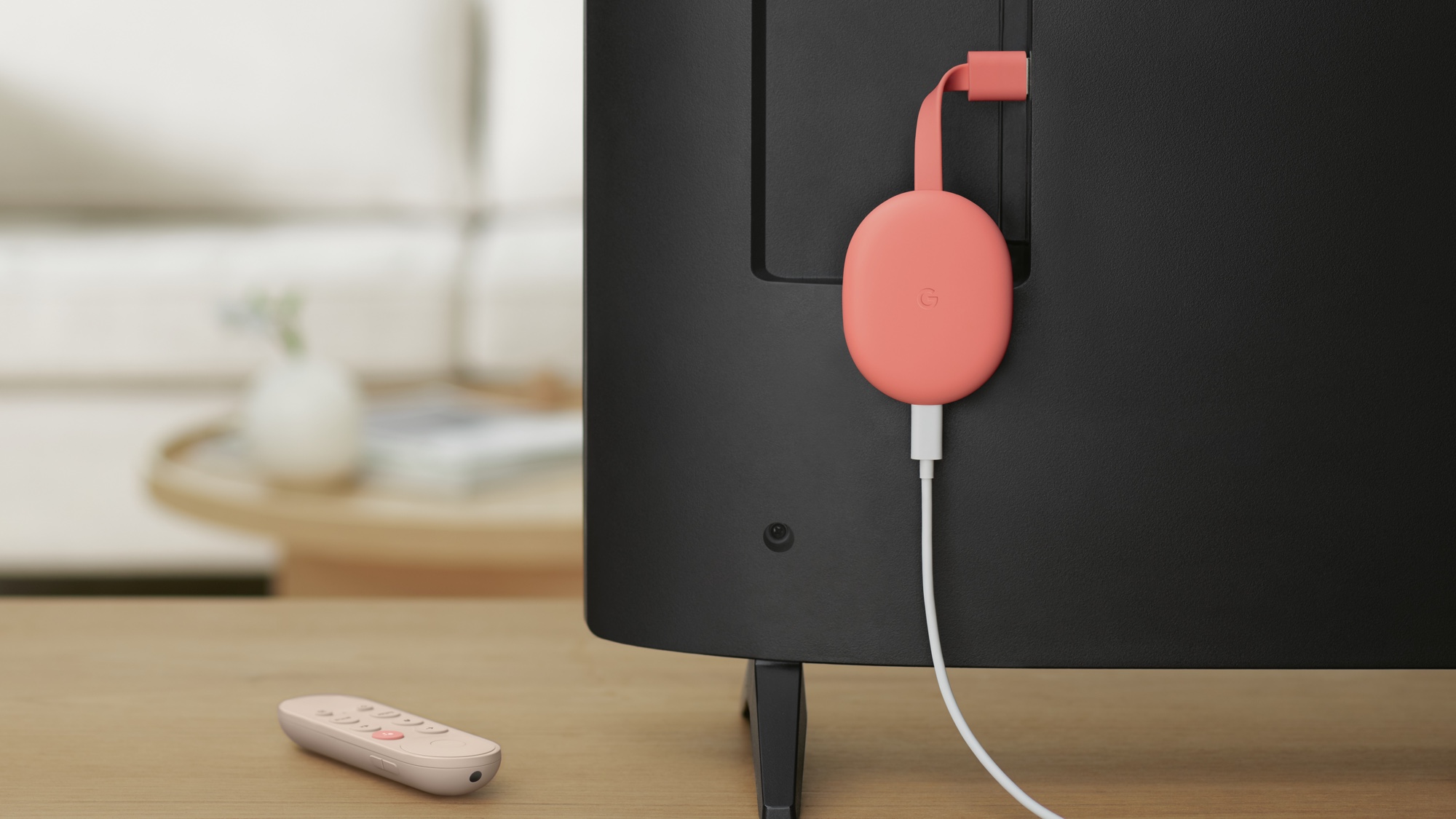
Chromecast (including speakers like Google Nest Audio) uses buffered streaming.
That means:
- Your PC sends audio
- Chromecast buffers it
- It stabilises playback
- Then it plays
That buffering adds delay. Usually between 300ms–1000ms.
That's fine for Netflix.
Not fine for:
- Discord
- Zoom
- Gaming
- System sounds
Method 1: Reduce Delay When Casting From Chrome
If you're casting via Chrome:
- Click ⋮ → Save and share → Cast
- Select "Cast desktop"
- Try lowering system audio latency in Windows Sound settings
Reality
This doesn't remove delay. It only makes it slightly less noticeable. Because the delay is inside the Chromecast protocol itself.
Method 2: Use Bluetooth Instead
Some Nest devices allow Bluetooth pairing.
Bluetooth often has:
- Slightly lower delay
- Lower stability
- More dropouts
- Reduced range
It's a trade-off. Still not ideal for real-time PC audio.
The Real Fix: Stop Using Screen Casting for Audio
Here's the core issue:
Why casting causes delay
When you cast your desktop, your PC is encoding video + audio. Even if you only want sound. That adds overhead. More processing = more delay.
If your goal is:
Use Google Nest as a proper PC speaker
You need dedicated audio streaming.
Not browser casting.
The Proper Way to Fix Chromecast Audio Delay
Instead of:
- Casting a Chrome tab
- Mirroring your screen
- Routing through browser hacks
You use software that:
- Captures Windows system audio directly
- Encodes audio only
- Streams in real time
- Minimises buffering
- Keeps speakers in sync
That's what PC Nest Speaker does.
It was built specifically to:
- ✓Stream PC audio to Google Nest speakers
- ✓Reduce latency compared to Chrome casting
- ✓Work system-wide (not just browser audio)
- ✓Run locally — no cloud processing
Because it focuses purely on audio — not video — it avoids unnecessary overhead. That's how you reduce delay properly.
When This Fix Makes the Biggest Difference
PC Nest Speaker is ideal if you want to:
- Use Google Nest as your main desktop speakers
- Play Spotify from Windows
- Stream YouTube audio
- Use Discord without echo
- Watch video with proper lip sync
- Sync multiple Nest speakers
If you only occasionally cast YouTube from Chrome, browser casting is fine.
But if you want your Nest speakers to replace wired desktop speakers, you need a better pipeline.
Frequently Asked Questions
Why is Chromecast audio out of sync with video?
Because Chromecast buffers audio to stabilise playback. That buffering creates delay between when your PC sends audio and when the speaker plays it.
Can I completely remove Chromecast latency?
You can significantly reduce it by using audio-focused streaming instead of desktop casting. Dedicated tools skip video encoding and minimise buffering, which cuts delay substantially.
Is this a hardware problem?
No. It's how the Chromecast protocol is designed. The hardware is capable — the streaming method causes the delay. Changing the streaming method fixes the problem.
Final Thoughts
Chromecast was built for streaming media.
It wasn't built to act as a real-time PC sound device.
If you're serious about fixing Chromecast audio delay on Windows, stop trying to tweak Chrome settings.
Change the method.
Ready to fix your Chromecast audio delay?
Stream PC audio to Google Nest with lower latency. No browser tabs. No video encoding overhead.
Download PC Nest Speaker1-hour free trial · No cloud · Windows only
Related Guides
- How to Connect Google Nest Speakers to Your PC (Complete Guide) →
Every method compared — Bluetooth, casting, and dedicated streaming
- How to Fix Audio Delay When Streaming to Google Nest →
More troubleshooting for PC-to-Nest audio delay
- Bluetooth vs Chromecast vs Dedicated Streaming →
Full comparison of all three connection methods
- AirParrot Alternative for Windows Audio →
Screen mirroring vs dedicated audio streaming compared
- Cast Discord, Teams & Zoom Audio to Chromecast →
Stream non-Cast apps to your speakers