Many people search for "chromecast audio only" hoping to stream just sound from their PC to a speaker — no screen mirroring, no video, just audio.
Here's the truth: Chromecast doesn't have a true audio-only desktop mode.
When you cast from a Windows PC, Chrome always encodes video as part of the stream — even if all you want is sound. There's no "audio only" toggle for desktop casting.
This guide explains why, covers the workarounds, and shows you the proper solution if you actually want audio-only streaming to Google Nest speakers from your PC.
Why Chromecast Defaults to Video
Chromecast was designed as a media casting device — built for Netflix, YouTube, and screen mirroring. When you "Cast Desktop" from Chrome, the browser encodes your entire screen as a video stream and bundles audio alongside it.

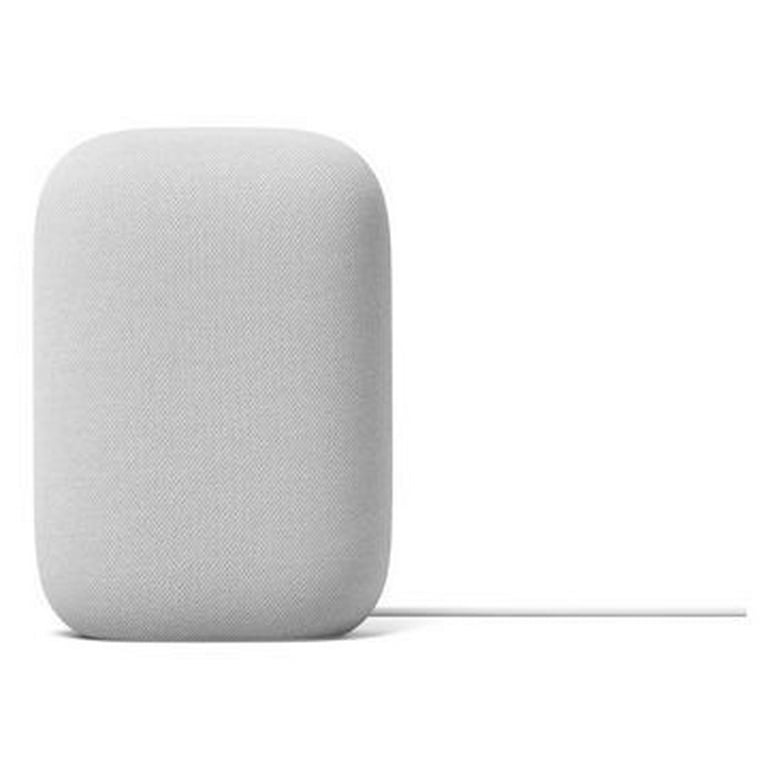

Even if you only care about the sound, here's what actually happens when you "Cast Desktop":
What Chrome does under the hood
- Encodes your entire screen as a video stream (even if you don't want video)
- Bundles audio alongside the video feed
- Chromecast buffers both streams before playback
- Video encoding adds CPU overhead and increases latency
There is no way to tell Chrome: "just send the audio part." The video layer is always present. That's why searching for "chromecast audio only PC" leads to frustration — the feature simply doesn't exist in the browser.
Can You Force Audio-Only Mode?
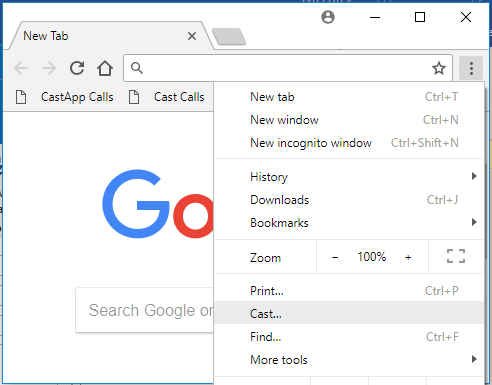
The closest workaround is tab casting instead of desktop casting. When you cast a single Chrome tab, only that tab's audio is sent to the speaker — no full desktop video stream.
Steps for Tab Casting
- Open Chrome
- Click the three-dot menu (⋮) in the top right
- Go to Save and share
- Click Cast
- Select your Google Nest speaker
The limitations
- Only sends audio from that one tab — not system-wide
- Spotify desktop app, Discord, Zoom, games — none of these route through a Chrome tab
- Still browser-dependent and buffered
- If you close or navigate away from the tab, audio stops
Tab casting is a partial workaround for web audio — but it's not a real "audio-only" PC solution.
The Audio-Only Alternative
If you want true audio-only streaming from your Windows PC to a Google Nest speaker, you need software designed specifically for that purpose — not a browser workaround.
PC Nest Speaker was built for exactly this.
It captures Windows system audio and streams it directly to Google Nest speakers — audio only, no video encoding, no browser dependency.
- ✓Audio-only streaming — no video encoding overhead
- ✓System-wide — captures sound from every app, every game, every notification
- ✓No browser required — runs as a standalone Windows application
- ✓Designed for Google Nest — auto-detects speakers on your network
- ✓Runs locally — no cloud, no account, all on your LAN
What You Can Stream (Audio-Only)
Because PC Nest Speaker captures all Windows system audio, you can stream sound from:
- ✓Spotify (desktop app)
- ✓YouTube (any browser)
- ✓Discord voice chat
- ✓Zoom / Teams calls
- ✓PC games (any title)
- ✓System sounds & notifications
- ✓VLC, Winamp, any media player
- ✓Any Windows app that makes sound
Tab casting can't do any of this. It only captures audio from a single Chrome tab. PC Nest Speaker captures everything.
Frequently Asked Questions
Can Chromecast do audio-only from a PC?
Not natively. When you cast your desktop from Chrome, it always encodes video alongside audio — there is no "audio only" toggle. Tab casting sends only that tab's audio, but it's not system-wide and doesn't work for desktop apps like Spotify, Discord, or games.
Is there a way to cast just audio to Google Nest?
Yes — PC Nest Speaker captures Windows system audio and streams audio-only to Google Nest speakers without video overhead. It works with every app on your PC, not just Chrome.
Why does casting audio use so much CPU?
Because Chrome's desktop casting encodes both a video stream and an audio stream simultaneously. The video encoding is the main CPU drain. Audio-only streaming software avoids this entirely by skipping the video layer — using a fraction of the processing power.
Final Thoughts
If you're searching for "chromecast audio only", you already know what you want: sound on your speaker, no video nonsense.
Chrome can't give you that from the desktop. Tab casting gets halfway there but only works for browser audio.
For real audio-only streaming — system-wide, from any app — you need software designed for that purpose.
Not a browser workaround.
Ready for true audio-only streaming?
Stream every sound from your PC to Google Nest speakers. No video. No browser. Just audio.
Download PC Nest Speaker1-hour free trial · No cloud · Windows only
Related Guides
- How to Stream PC Audio to Chromecast (Complete Guide) →
All streaming methods compared side by side
- Stream PC Audio to Google Nest Speakers →
Step-by-step setup for Nest devices
- Best Chromecast Audio Tools Compared →
Feature and pricing comparison of all options
- Bluetooth vs Chromecast vs Dedicated Streaming →
Which connection method is best for your setup
- Fix Chromecast Audio Problems on Windows →
Troubleshoot common casting issues