If you want to use your Google Nest speaker as a PC speaker, you've probably discovered something frustrating:
It's not straightforward.
Google Nest devices are designed for streaming from apps and phones — not acting as a low-latency desktop audio output.
But it is possible.
In this guide, we'll cover all the official methods, why most of them fail, common audio delay problems, and the best way to connect Google Nest to a Windows PC properly.
What You're Trying to Do (And Why It's Difficult)
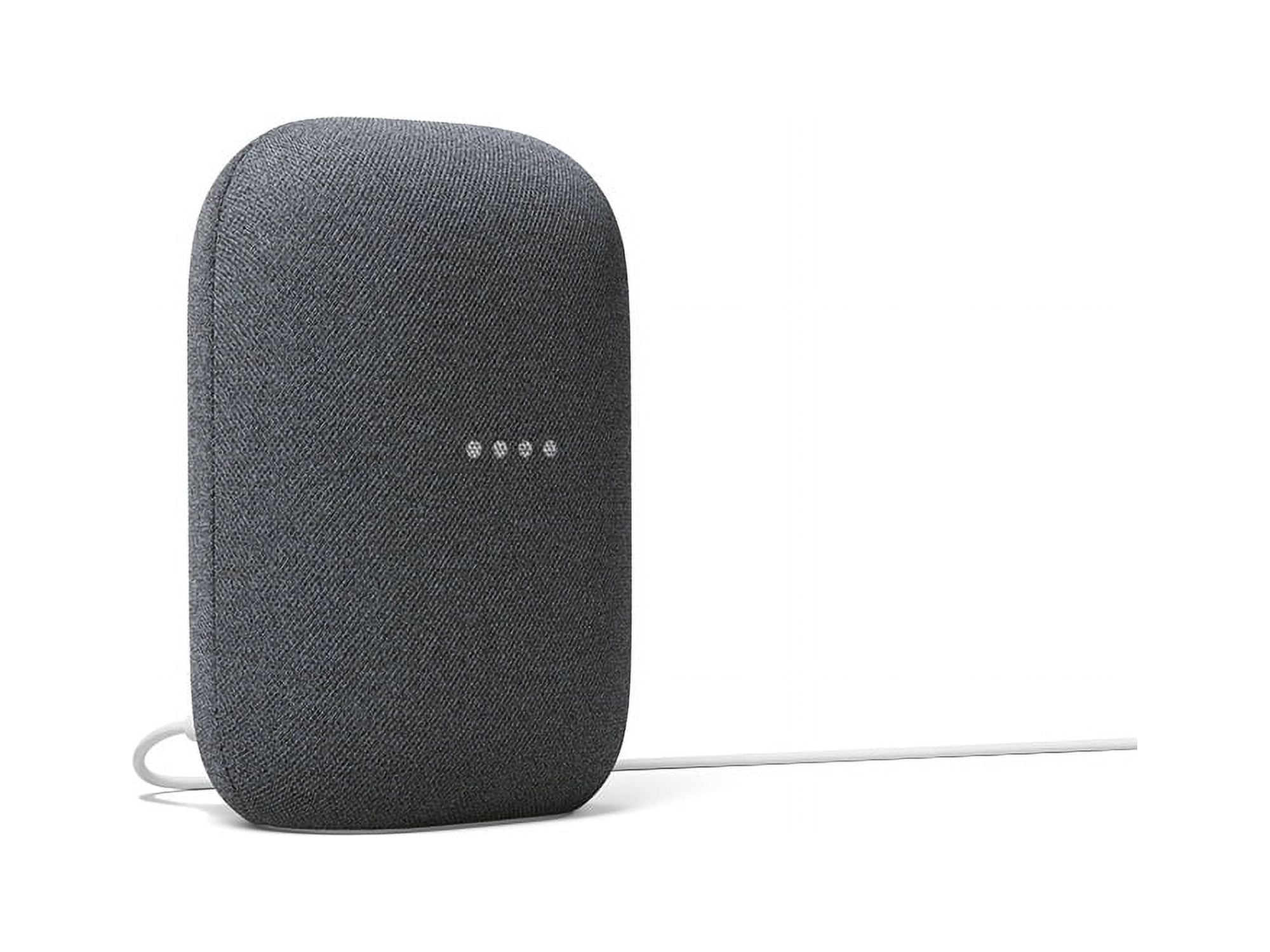
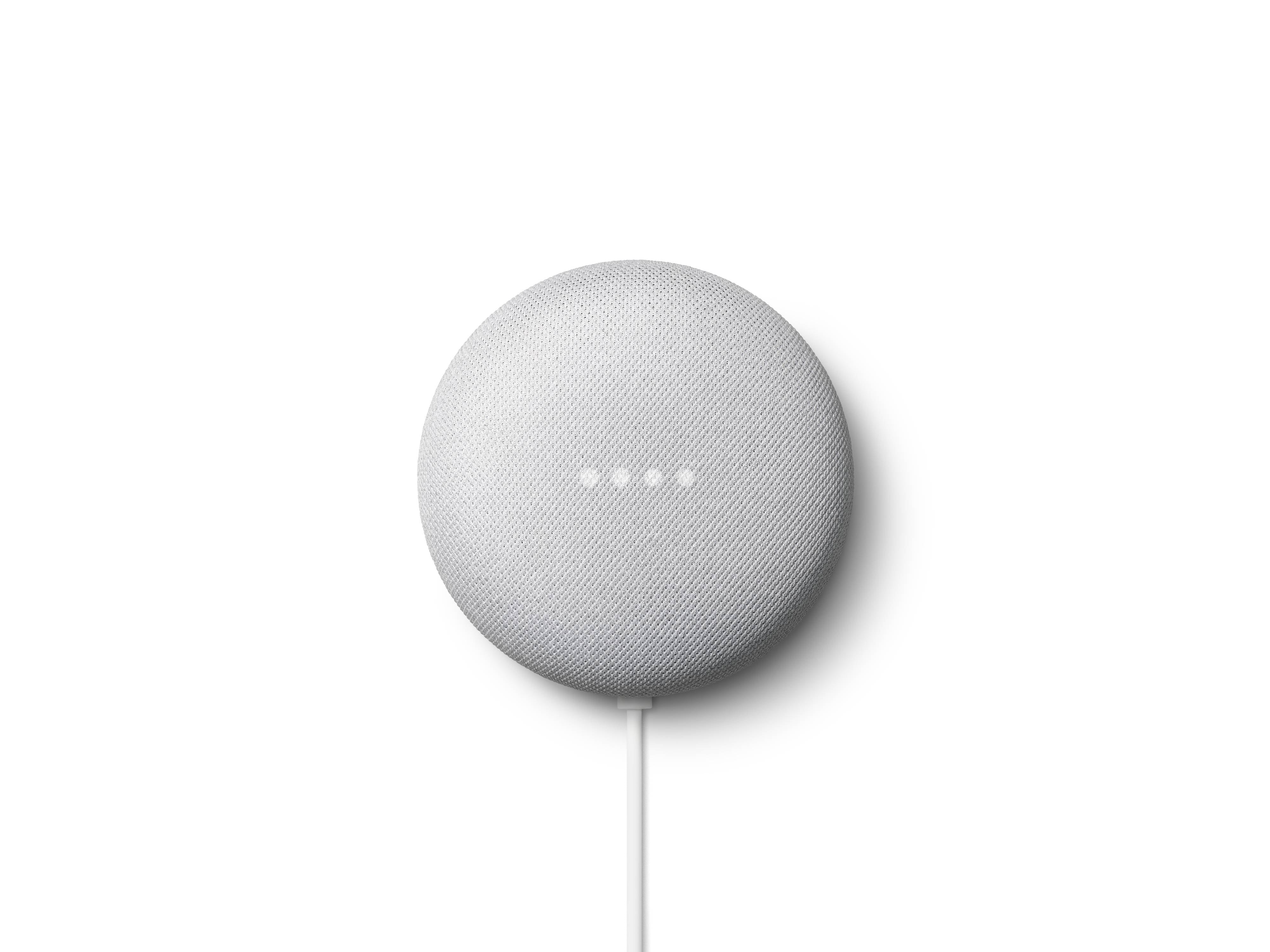

This guide applies to:
- Google Nest Audio
- Google Nest Mini
- Google Home
The problem:
Why this is difficult
Google Nest speakers are built around the Chromecast protocol, not traditional Bluetooth speaker mode. So Windows doesn't naturally see them as a standard audio output device. That's where things get messy.
Method 1: Connect Google Nest to PC via Bluetooth
Some Nest devices support Bluetooth pairing.
Steps
- Open the Google Home app
- Select your speaker
- Enable Bluetooth pairing mode
- On Windows → Settings → Bluetooth & Devices
- Add device → Select your Nest speaker
The Reality
Bluetooth limitations
- Audio quality can be compressed
- Dropouts are common
- Range is limited
- Latency is unpredictable
Fine for casual music.
Not fine for:
- Discord
- Zoom
- Gaming
- Real-time system audio
Method 2: Cast Chrome Tab Audio
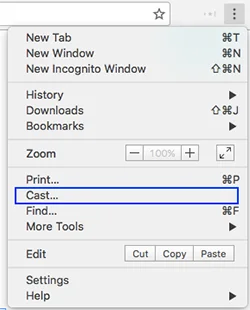
You can:
- Open Chrome
- Click the three-dot menu (top right)
- Go to Save and share
- Click Cast
- Select your Nest speaker
The Problems
Chrome casting limitations
- Only works reliably inside Chrome
- Desktop casting introduces delay
- Audio/video sync drifts
- System sounds often don't route correctly
This is not a true "PC speaker" solution.
It's a workaround.
Why There's Always Audio Delay
Chromecast protocol buffers audio.
That buffer:
- Keeps streaming stable
- Prevents dropouts
- Adds latency
For video streaming, delay doesn't matter. For PC audio, it absolutely does.
What delay actually means
- Discord voices feel delayed
- Zoom echo cancellation breaks
- You hear game sounds half a second late
Read more: How to fix audio delay when streaming to Google Nest →
The Better Way: Stream PC Audio Properly
Instead of tricking Chrome into casting, you need software that:
- Captures Windows system audio
- Encodes in real time
- Streams directly to Google Nest speakers
- Maintains stereo sync
- Minimises latency
That's exactly what PC Nest Speaker was built to do.
- ✓Turns your Google Nest into a real PC output device
- ✓Streams full stereo audio
- ✓Keeps speakers in sync
- ✓Works system-wide (not just Chrome)
- ✓Avoids cloud processing
- ✓Runs locally on your PC
No browser tabs required.
When Should You Use Each Method?
| Situation | Best Option |
|---|---|
| Casual music | Bluetooth |
| YouTube only | Chrome cast tab |
| Zoom / Discord | PC Nest Speaker |
| Multi-speaker sync | PC Nest Speaker |
| Gaming | PC Nest Speaker |
If you're serious about using Google Nest speakers as proper desktop speakers, browser casting isn't enough.
Frequently Asked Questions
Can I use Google Nest as a PC speaker permanently?
Yes — but not reliably using Chrome alone. Dedicated software gives better stability and lower delay.
Why does Chromecast audio lag?
Because it buffers audio before playback. That buffering causes delay. Multi-speaker groups add even more latency due to synchronisation.
Is Bluetooth better than casting?
Bluetooth often has less delay but worse stability and quality. It also only connects to one speaker at a time — no stereo pairs or groups.
Can I connect multiple Nest speakers to my PC?
Yes — if you use software designed for multi-speaker streaming. See our multi-room guide.
Final Thoughts
Google Nest speakers weren't built to replace desktop speakers.
But they're excellent hardware.
With the right method, they can absolutely work as your PC audio system.
If you want:
- ✓Proper stereo output
- ✓Lower latency
- ✓Full system audio
- ✓No browser dependency
Then you need more than Chrome casting.
Ready to use your Google Nest speakers as real PC speakers?
No more tab casting. No more Bluetooth lag. Just full system audio over Wi-Fi.
Download PC Nest Speaker1-hour free trial · No cloud · Windows only
Related Guides
- How to Stream PC Audio to Google Nest Speakers (Windows Guide) →
Step-by-step streaming setup
- AirParrot Alternatives for Chromecast Audio →
Compare the best tools for casting PC audio
- Bluetooth vs Chromecast vs Dedicated Streaming →
Full comparison of all three methods
- Cast Discord, Teams & Zoom Audio to Chromecast →
Stream non-Cast apps to your speakers
- How to Fix Audio Delay When Streaming to Google Nest →
Practical solutions to minimise latency